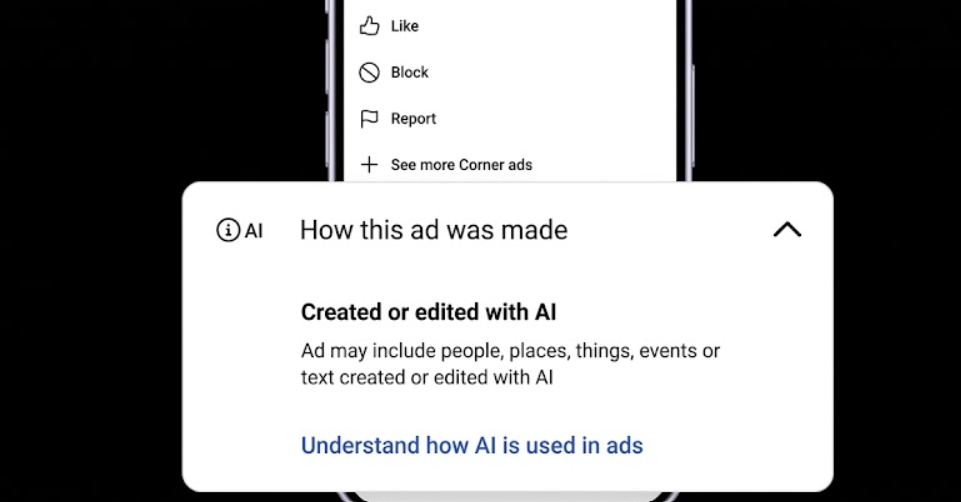
If you use AI to generate assets for your Google Ads campaign, this is for you. Google recently added a setting in the Asset library that requires you to flag whether an image or video was created or edited with AI. Once you tag an asset, what your audience actually sees depends on where they live.
For most of the world, the disclosure hides out in the “How this ad was made” menu on Search, YouTube, and Discover. If you run campaigns targeting the EU, India, or New York, though, Google places a visible label straight onto your creative.

When disclosure is mandatory
Knowing when to label comes down to who did the heavy lifting. You do not need to flag an asset just because AI touched it.
If a human created the main content and only used AI for minor edits or optimisation, you can skip the label. The rule targets primary creation. This means that if an AI tool generated the core image or video, you have to disclose it.
Ask yourself: would someone looking at this ad assume a human created it? If the answer is yes, but a machine actually did the work, it needs a label.
Google polices this under its standard misrepresentation rules. An unlabelled AI image will get you in just as much trouble as a fake testimonial. Also, deepfakes of real people are completely banned, even if you disclose them.
Google’s tools against third party assets
The real risk for media buyers is how differently Google treats its own AI tools compared to everything else.
If you generate an image right inside Google Ads, the system automatically bakes in a hidden watermark and metadata. Google might even step in and apply the AI label on your behalf to help with regional compliance, and you cannot overwrite those automated labels.
But if you build your creatives using external tools, Google cannot always spot them automatically. The burden of manual disclosure falls 100% on you. So, simply ticking the AI box in the interface does not give you blanket legal protection.
Use of the AI label setting in Google’s advertising products doesn’t guarantee your compliance with specific regulations in all geographies in which you advertise. Seek legal guidance and take measures as needed to ensure your compliance.
How to audit your active creatives
To avoid automated disapprovals, you need to audit the campaigns you are currently running.
First, head over to your Asset library and turn on the “AI label” status column. This view lets you filter your entire media library, so you can easily spot which assets are flagged and which ones still need checking.
If you add your own text overlays to disclose AI usage, Google warns you to keep them away from the far corners of the image. Features like asset enhancements or adaptive layouts often crop the borders of your creative when they render. If your disclosure is too close to the edge, it could get chopped off the final ad.

Your Action Items
The safest move is to pull up your Asset library, filter for undesignated creatives, and apply the labels manually before Google’s automated compliance sweeps flag them for you. Do not wait for a sudden wave of disapprovals to force your hand, get ahead of the liability now.